
Pak Game OTP Not Received? Check Registered SIM, Network and Request Limits
A Pak Game OTP may be needed when you register, sign in, reset a password or verify a sensitive account action. If the code does not arrive, repeatedly pressing the resend button is rarely the best first move. It can create several overlapping requests and make it difficult to identify which code belongs to the active screen.
Start with the registered mobile number. Confirm that the SIM is active, inside your phone and able to receive ordinary SMS messages. Then check mobile signal, dual-SIM settings, blocked messages and whether the app is still using the same verification session.
Pak Game does not publish a universal OTP delivery or request-limit time that we could independently verify. Follow any countdown or warning shown on your own screen rather than relying on an invented waiting period.
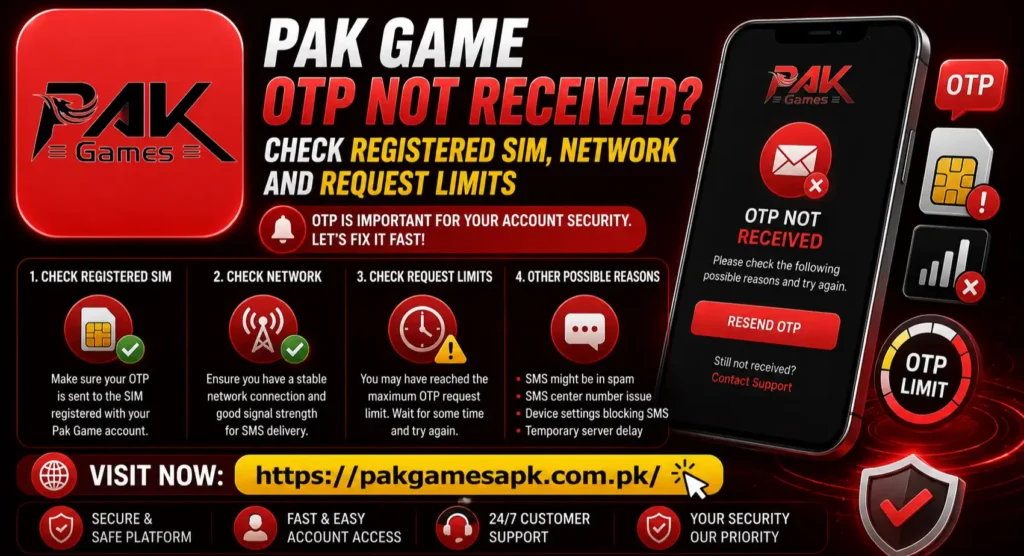
Quick OTP Checklist
| Check | What to confirm | What to do next |
| Registered number | The final digits match your Pak Game account | Correct the number before requesting again |
| SIM status | Calls and normal SMS messages are working | Contact the mobile operator if all SMS are failing |
| Dual-SIM setup | The expected number is installed and active | Keep that SIM enabled during verification |
| Mobile signal | The phone is connected to the cellular network | Move to better coverage or reconnect the network |
| Spam and blocked folder | The code was not filtered by the messaging app | Restore or unblock the sender if appropriate |
| Request timer | No resend countdown or limit warning is active | Wait until the screen permits another request |
| Verification session | The code request and entry field are in the same app or tab | Close duplicate screens and start one fresh attempt |
| Recent SIM change | The SIM is fully activated and receiving service | Test SMS first before retrying Pak Game |
Why Pak Game OTP Messages Can Be Delayed
An OTP request passes through more than one system. Pak Game first creates the verification request. A messaging provider then sends it through the mobile network, and your phone’s messaging app decides where the message appears.
A delay at any stage can stop the code from reaching the visible inbox. Common causes include:
- An incorrect or differently formatted mobile number
- The account being linked to another SIM
- Weak or interrupted cellular coverage
- A recently activated or replaced SIM
- A full, disabled or restricted messaging app
- Spam filtering or a blocked sender
- Several OTP requests made close together
- An expired or replaced verification session
- A temporary problem on the service or messaging-provider side
The correct fix depends on whether all SMS messages are missing or only the Pak Game code is absent.
Confirm the Exact Registered Number
The most important check is the number displayed on the verification screen. Look at the visible final digits and make sure they belong to the SIM you currently control.
During registration, users sometimes enter:
- One wrong digit
- A family member’s number
- An inactive older SIM
- The wrong country-code format
- A leading zero where the form already applies +92
Do not keep requesting codes until the number is correct. An OTP sent to the wrong person can create an account-security risk.
If you are creating an account, return to the form and correct the number. The existingPak Game registration page explains that the number must be capable of receiving verification SMS messages.
If the account already exists and the masked digits are not yours, stop the recovery attempt. Use the recognised support channel to confirm which number is attached to the account. Do not create a second account as a quick workaround.
Check Whether the SIM Is Active
Look at the mobile network indicator, not only the Wi-Fi icon. OTP messages are delivered through the SIM’s SMS service, so a working internet connection does not prove that the mobile line can receive texts.
Test the SIM:
- Ask someone to call the number.
- Ask them to send a normal SMS.
- Send an outgoing SMS if your service allows it.
- Confirm that the phone displays the expected network name.
If calls and ordinary messages also fail, the problem is probably with the SIM, phone or network rather than Pak Game. Contact the mobile operator through its official help channel.
An inactive, blocked, lost or deactivated SIM cannot reliably receive a verification code. Restore access to the original number before attempting repeated account recovery.
Verify That the SIM Belongs to You
Use a mobile number that is legally under your control. This becomes important if the SIM must be replaced, reverified or recovered later.
The Pakistan Telecommunication Authority explains that SIM-related transactions use biometric verification and provides methods for checking SIMs connected to a CNIC. ItsSIM biometric-verification guidance says users can check operator-wise SIM counts through the SIM information system or by sending their CNIC number without dashes to 668.
This does not tell you which Pak Game account uses the number, but it helps confirm that the SIM is legitimately held. If the registered number belongs to a parent, sibling or another person, that person may need to handle any telecom replacement or ownership issue.
Never buy a pre-activated SIM or ask an unknown agent to receive your OTP.
Fix Weak or Interrupted Mobile Signal
An OTP can be delayed when the phone moves between network areas, remains on emergency calls only or has recently returned from airplane mode.
Try these basic steps:
- Move near a window or into an area with stronger coverage.
- Turn airplane mode on briefly, then turn it off.
- Wait for the network name and signal bars to return.
- Restart the phone if the SIM remains disconnected.
- Remove and reinsert the SIM only if you can do so safely.
- Use automatic network selection unless your operator advises otherwise.
Jazz’s publishedconnectivity tips also recommend toggling airplane mode when a device has trouble reconnecting to the cellular network.
After signal returns, test an ordinary SMS. Then request one new Pak Game code rather than using a verification screen that has been open for a long time.
Check Dual-SIM Settings
Many Android phones hold two SIM cards. Internet data may come from SIM 1 while the Pak Game account is registered to SIM 2. This normally should not prevent an incoming SMS, but problems arise if the registered SIM is turned off, has no signal or was removed.
Open Settings > SIM cards, SIM manager or the equivalent menu on your phone. Confirm that:
- The registered SIM is enabled.
- The phone recognises its number or operator.
- It has mobile-network coverage.
- It is not limited to a data-only profile.
- No work profile or secondary user is hiding notifications.
You do not necessarily need to make it the mobile-data SIM. It simply needs to remain active and capable of receiving SMS messages.
If you temporarily move the SIM to another phone for testing, keep the Pak Game request on one device and avoid switching between several active verification screens.
Look in Spam and Blocked Messages
Android messaging apps can filter unknown automated senders. The OTP may arrive but appear outside the main inbox.
In Google Messages, open the profile menu and check Spam and blocked. Google’sblocked-message instructions explain how to review the list and unblock a conversation.
Also check:
- Archived conversations
- Unknown-sender categories
- Notification history
- A second messaging app set as default
- Any call-and-SMS blocking service enabled by the operator
- Security or spam-filtering apps
Do not disable all spam protection permanently. Review the filtered message and sender first. A genuine OTP should never ask you to reply with a password, send money or install another app.
Free Space in the Messaging App
Modern Android phones rarely stop receiving SMS because of storage alone, but an overloaded or malfunctioning messaging app can fail to display new messages correctly.
Try a safe restart before deleting anything. If the messaging app remains frozen:
- Close and reopen it.
- Restart the phone.
- Update the messaging app through the normal app store.
- Clear only temporary cache if your phone provides that option.
- Confirm that the app has notification permission.
Avoid clearing all messaging data unless your messages are backed up and you understand the effect. The goal is to restore delivery without deleting account evidence or older verification messages unnecessarily.
Stop Making Repeated OTP Requests
Every tap on “send” or “resend” may create another verification request. Platforms often apply temporary controls when too many codes are requested, but Pak Game’s exact limit is not publicly confirmed.
Watch the screen for:
- A resend countdown
- “Try again later”
- “Too many requests”
- A temporarily unavailable message
- A disabled resend button
If any of these appears, stop. Wait until the interface allows another request. Reinstalling the app, changing the phone clock or switching networks repeatedly will not necessarily remove a server-side restriction.
When trying again, create only one fresh request and remain on that screen.
Use Only the Newest Code From the Active Request
Delayed messages may arrive out of order. The first SMS in the inbox may belong to an older request, while the active verification screen expects a newer code.
Do not try every code one after another. Compare the message time with the time of your latest request and use only the code for that current session.
If several messages arrive together:
- Close the current verification screen.
- Wait until older messages have stopped arriving.
- Open one fresh Pak Game login or registration page.
- Request one code.
- Enter that code on the same screen.
The platform may invalidate older codes when a newer request is created, but exact behaviour can vary. One-request-at-a-time is the safest approach.
Keep the App and Browser Session Consistent
Requesting a code in the Pak Game app and then entering it on a website tab can create a session mismatch. The same can happen when two browser tabs are open or when you move from an old phone to a new one midway through verification.
Choose one route:
- Pak Game app on one phone, or
- Pak Game website in one browser tab
Close duplicate tabs and old verification screens. Type the registered number again and make one fresh request.
The general Pak Games login page confirms that OTP verification can be part of account access, but it does not publish a fixed delivery time. Do not assume the code is valid indefinitely.
Check Date and Time Settings
An incorrect phone clock does not usually stop an SMS from reaching the inbox, but it can make messages appear in the wrong order and interfere with the verification session after the code is entered.
Enable:
- Automatic date and time
- Automatic time zone
- Network-provided time, if available
Restart the app afterward. This is especially useful on a newly reset phone, a device recently used in another country or a phone with a manually changed clock.
Test With Wi-Fi and Mobile Data Carefully
The OTP itself arrives through the SIM, but the request is sent from Pak Game Download over the internet. A failed connection can prevent the request from reaching the service even though the page appears to be loading.
If the app displays an error when you press send:
- Switch once between reliable Wi-Fi and mobile data.
- Turn off a VPN or proxy temporarily.
- Disable data saver for the app while testing.
- Confirm that other pages can load.
- Avoid switching networks after the request has been accepted.
If the screen confirms that a code was sent, focus on SIM and SMS checks. If it never confirms the request, focus on the app, browser and internet connection.
Recently Replaced, Ported or Reactivated SIM
A replacement or newly reactivated SIM may regain calls, SMS and other services at different times. Confirm that ordinary incoming messages work before testing Pak Game.
If you moved the number to another network or obtained a duplicate SIM, use the operator’s official support channel when transactional messages remain unavailable. Do not keep requesting OTPs while activation is incomplete.
Keep proof that the number belongs to you. Never give a telecom agent your Pak Game password or game verification code; the operator needs to troubleshoot the mobile service, not enter your gaming account.
The Registered Number Is Lost or Inactive
If you no longer control the number, ordinary OTP troubleshooting will not solve the problem. Ask the mobile operator whether a same-number replacement is available through its authorised process.
If the number cannot be restored, contact the support option connected to the Pak Game app or website you normally use. Explain that the registered SIM is unavailable and ask whether manual ownership verification or a number change is supported.
Do not create another account simply to bypass verification. That can separate you from the original balance and transaction history and may create duplicate-account complications.
Pak Game or Messaging Provider May Be Delayed
If the registered number is correct, normal SMS messages are arriving, no code is filtered and the request screen shows no user error, the delay may be outside your phone.
At that point:
- Stop requesting codes.
- Record the time of the latest attempt.
- Take a screenshot of the message on the verification screen.
- Test again later with one request.
- Contact support if the problem continues.
Avoid declaring the account blocked unless the app shows a specific restriction message. A delayed OTP and a locked account are different problems.
What to Send to Pak Game Support
Use the in-app help option or the support route shown on thePak Game contact page. Provide enough detail to investigate without exposing account secrets.
Include:
- Registered number with middle digits hidden in screenshots
- Mobile-network name
- Phone model and Android version
- App or browser used
- Approximate date and time of the latest request
- Exact message shown on the screen
- Whether ordinary SMS messages are arriving
- Whether the SIM was recently replaced or ported
- Screenshot of the error, without displaying a live code
Never send your password, wallet MPIN, withdrawal PIN or an OTP. Support does not need to log in as you to investigate message delivery.
What Not to Do
- Do not tap “resend” continuously.
- Do not share the OTP with a friend, agent or support profile.
- Do not enter old codes into a new request.
- Do not create several accounts with different numbers.
- Do not install a modified APK as an OTP fix.
- Do not pay anyone to activate or bypass verification.
- Do not turn off mobile security protections permanently.
- Do not post your full number or screenshots of codes in public groups.
- Do not change the phone clock to defeat a request limit.
A Safe Step-by-Step Reset
Follow this order for one clean attempt:
- Stop requesting codes and close duplicate screens.
- Confirm the final digits of the registered number.
- Check that the SIM is enabled and has cellular signal.
- Test a normal incoming SMS.
- Review spam, blocked and archived messages.
- Restart the phone and enable automatic date and time.
- Choose one stable internet connection.
- Open one Pak Game app or browser session.
- Request one OTP after any displayed timer ends.
- Enter only the newest code on the same screen.
If the code still does not arrive, save the evidence and contact support instead of repeating the same sequence.
Frequently Asked Questions
Why is my Pak Game OTP not arriving?
The number may be incorrect, the registered SIM may lack signal, the message may be filtered, several requests may overlap or the delivery service may be delayed. Check each layer in order.
How long should a Pak Game OTP take to arrive?
Pak Game does not publish a universal delivery time that we could verify. Follow the countdown and status displayed on your own verification screen. If it remains delayed, troubleshoot before requesting again.
How many times can I request a Pak Game OTP?
The exact request limit is not publicly confirmed. Stop if the app displays a countdown, disabled button, “too many requests” or “try again later” message.
Can I receive the code on WhatsApp or email?
Use only the options displayed in your own Pak Game verification screen. Do not ask an unknown agent to forward a code through another service.
Which OTP should I use if several messages arrive together?
Use only the newest code connected to the latest active request. If the order is unclear, close the screen, allow delayed messages to arrive and begin one fresh attempt.
Does having Wi-Fi mean my SIM can receive the OTP?
No. Wi-Fi can submit the request, but the verification SMS still requires an active SIM and cellular SMS service.
Can Pak Game support ask for my OTP?
Do not share a live OTP. It proves control of your registered number and could be used to access or change the account. Provide device and request details instead.
What if my registered SIM is lost?
Contact the mobile operator about blocking and replacing the same number. If recovery is impossible, ask Pak Game support whether manual ownership verification is available. Avoid creating a duplicate account.
Final Thoughts Pak Game OTP Not Received
When a Pak Game OTP does not arrive, begin with the registered SIM rather than the resend button. Confirm the number, test ordinary SMS messages, review signal and dual-SIM settings, and look in spam or blocked folders.
Make one verification request at a time and keep it in the same app or browser session. If the SIM and phone are working but the code remains unavailable, record the request details and use the recognised support channel.
Above all, keep every verification code private. An OTP is temporary, but giving it to the wrong person can create a much longer account-recovery problem.
Responsible-gaming notice: Pak Game content is intended for adults aged 18 and above who meet applicable local requirements. Real-money gaming can result in financial loss. Never borrow to play, never chase losses and set strict spending and time limits.


